Remove Samsung Bloatware with ADB
Remove Samsung bloatware from your phone using ADB, no root required. Commands and steps to debloat safely.
Download ADB for macOS from https://www.xda-developers.com/install-adb-windows-macos-linux/
1. Enable Developer Options and USB Debugging
Go to your device's "Settings."
Scroll down and select "About phone."
Locate "Build number" and tap it multiple times (usually 7 times) until you see a message saying you are now a developer.
Go back to the main "Settings" menu and now you should see "Developer options" or "System" > "Developer options."
Enable "USB Debugging."
2. Install ADB on your computer:nDownload ADB for macOS from https://www.xda-developers.com/install-adb-windows-macos-linux/ and follow the instructions given on this page.
3. Connect your Device:nConnect your Samsung device to your computer using a USB Type-C cable.
4. Open Command Prompt or Terminal:nOn macOS open Terminal.
5. Grant ADB Permissions:nA popup will appear on your phone asking for permission to allow USB debugging from the connected computer. Allow it.
6. Verify Device Connection:nIn the command prompt or terminal, type the following command to ensure your device is recognized by ADB:Copy codenadb devices
7. List System Apps:nTo list all installed packages (apps) on your device, run the following command:
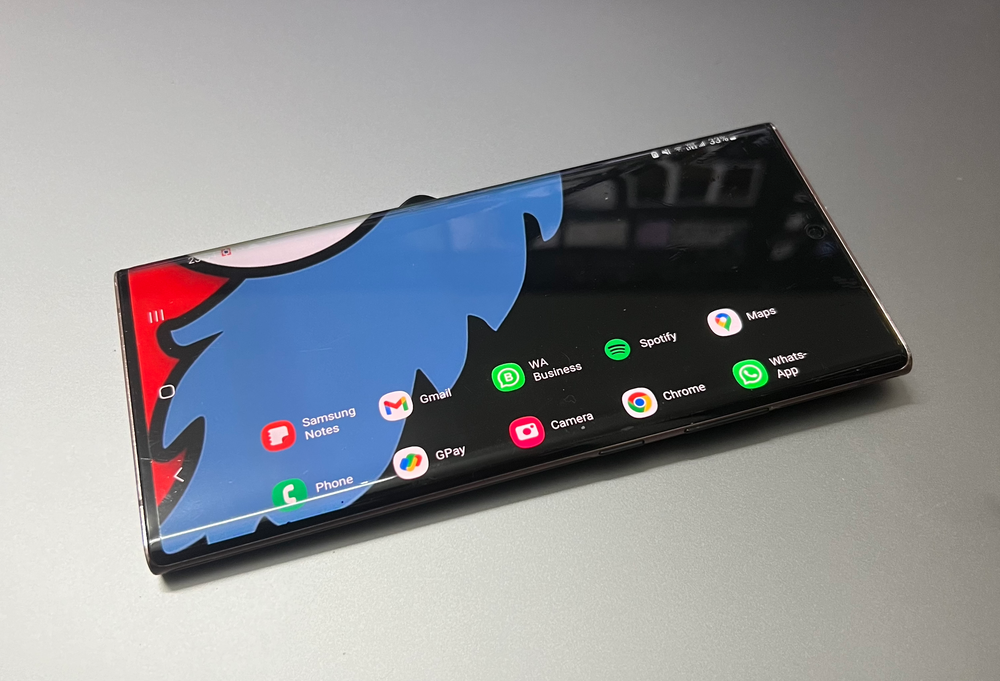
adb shell pm list packages 8. Identify Bloatware Packages:nLook through the list of packages to identify the ones you want to remove. Bloatware apps usually start with "com.samsung" or "com.sec."
9. Uninstall or Disable Packages:nTo uninstall a package (app), use the following command
adb shell pm uninstall -k --user 0 package_name Replace "package_name" with the actual name of the package you want to uninstall.
To disable a package (app) without completely removing it, use:
adb shell pm disable-user --user 0 package_name10. Reboot:
After you've uninstalled or disabled the desired apps, you can reboot your device using the following command
adb reboot