Solving Date/Time Issues in Dual Boot (Windows/Ubuntu)
Fix the wrong clock in a Windows and Ubuntu dual boot. Why the time keeps shifting and the simple fix to keep both systems in sync.
If you’re experiencing date and time issues in Windows after dual-booting with Ubuntu, the problem is likely due to how each operating system handles the system clock.
Why This Happens?
• Ubuntu (Linux): Uses UTC (Coordinated Universal Time) by default.
• Windows: Uses local time by default.
• This difference causes time mismatches when switching between OSes.
Solution 1: Make Windows Use UTC (Recommended)
1. Open Command Prompt (Admin):
• Press Win + X → Click Command Prompt (Admin) (or PowerShell)
2. Run the following command to enable UTC time in Windows:
reg add "HKEY_LOCAL_MACHINE\SYSTEM\CurrentControlSet\Control\TimeZoneInformation" /v RealTimeIsUniversal /t REG_DWORD /d 1 /f3. Restart your computer and check if the time issue is resolved.
Solution 2: Make Ubuntu Use Local Time
If you prefer keeping Windows settings unchanged, you can configure Ubuntu to use local time instead:
1. Boot into Ubuntu.
2. Open a terminal and run:
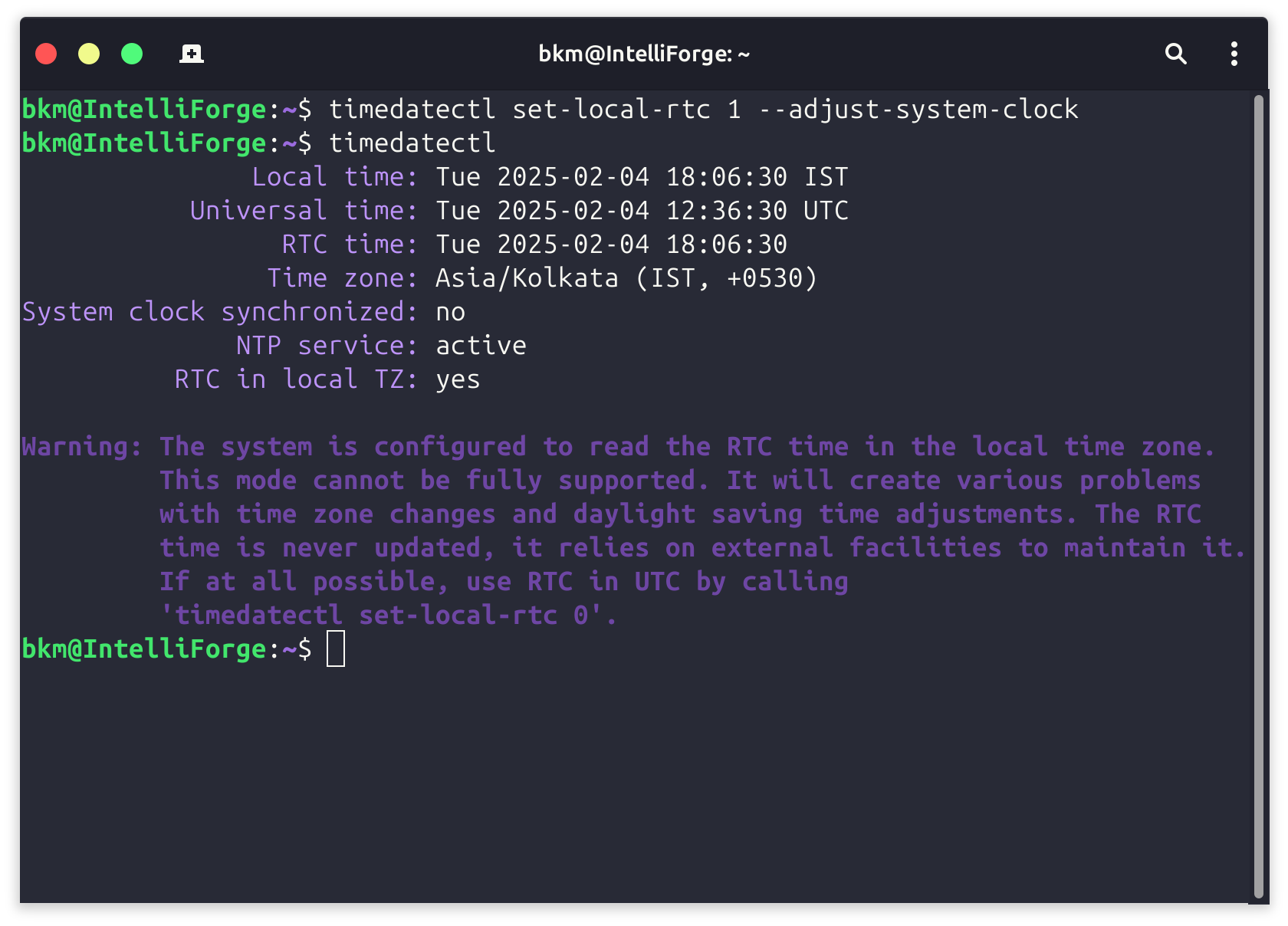
timedatectl set-local-rtc 1 --adjust-system-clock
3. Verify the change:
timedatectl
It should show:
RTC in local TZ: yes
4. Restart your system and check if the time issue is resolved.